§8 · Using the module
Budgets
For management controllers and finance management. The Budgets section covers building budgets, tracking them, expense commitments and credit transfers.
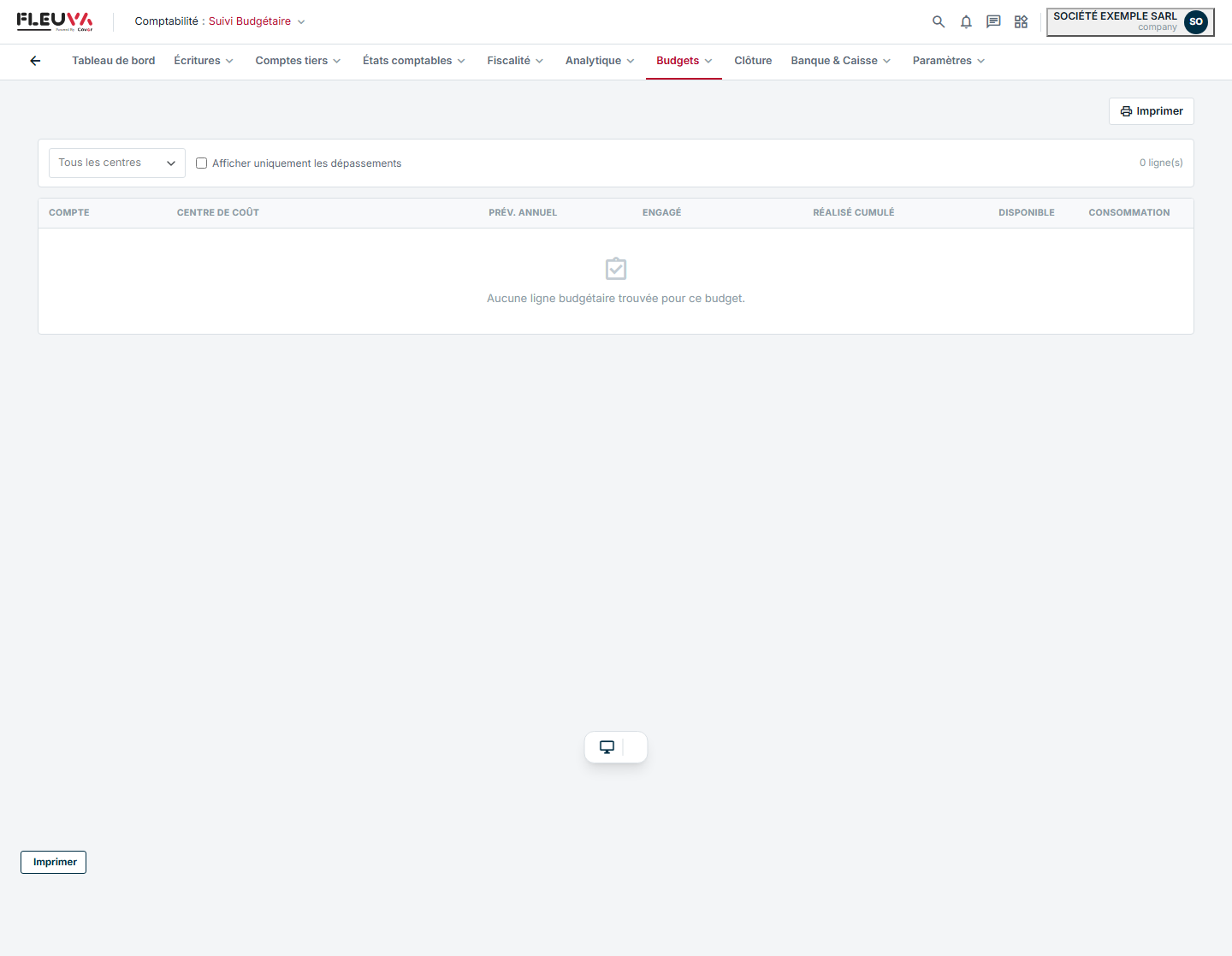 Budgets › Budget monitoring
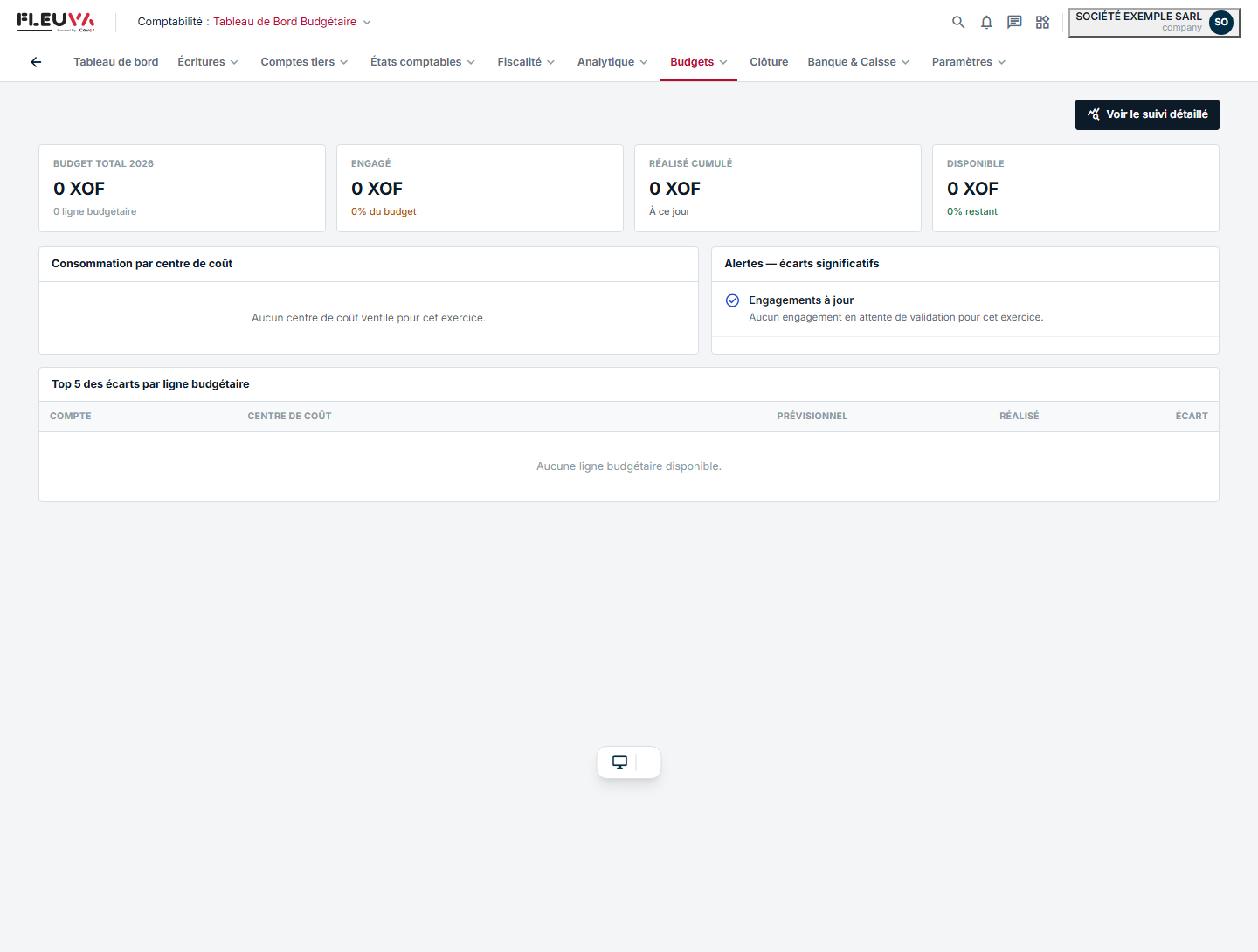 Budgets › Budget overview
Key concepts: the four pillars of the budget
Forecast, committed, actual, available: definitions and formulas
Budget accounting in Fleuva relies on four separate amounts calculated for each budget line (the combination of an expense or revenue account and a cost centre):
| Amount | Business definition | Source in the software |
|---|
| Forecast (or allocated budget) | Financial envelope authorised and planned for the fiscal year, spread month by month. | Monthly grid validated on the New budget screen. |
| Committed (commitment accounting) | Sum of purchase promises, orders or contracts signed with third parties, awaiting invoicing or accounting settlement. | Active commitments (Pre-commitment or Committed). |
| Actual (general accounting) | Actual amount of the invoices recorded and entries validated in the general ledger. | Posted accounting entries attached to the cost centre. |
| Available (remaining authorisable credit) | Net amount the company can still legitimately commit without risking a budget overrun. | Available = Forecast − Committed + Transfers received − Transfers sent |
                                  FORECAST ENVELOPE (e.g. 10,000,000 XOF)
                                                        │
                      ┌─────────────────────────────────┴─────────────────────────────────┐
                      ▼                                                                   ▼
       ACTIVE COMMITMENT (e.g. 4,000,000 XOF)                              AVAILABLE CREDIT (6,000,000 XOF)
 (Signed purchase orders & ongoing contracts)                         (Amount that can still be committed)
                      │
                      ▼
       ACCOUNTING ACTUAL (e.g. 3,500,000 XOF)
 (Invoices recorded & posted in the general ledger)
Why committed and actual legitimately differ
In corporate financial management, it is perfectly normal and common for the committed amount and the actual amount to differ on the same budget line.
This difference is not an anomaly; it faithfully reflects the purchasing cycle:
- 1
Timing gap between order and invoice: · When a supplies order of 1,000,000 XOF is signed on the 5th of the month, it immediately becomes committed for 1,000,000 XOF. The available credit drops immediately. · As long as the supplier has not delivered and the invoice has not been entered in the books, the accounting actual stays at 0 XOF.
- 2
Final invoicing differences: · The final invoice may be slightly lower (discount granted) or higher (unexpected carriage costs) than the initial order estimate.
- 3
Services spread over time: · An annual maintenance contract of 12,000,000 XOF is committed in full in January (committed = 12,000,000 XOF), but the actual grows by 1,000,000 XOF each month as the monthly invoices arrive.
infoThe finance director's golden rule: the available amount is always calculated against the committed amount, not against the actual. Relying only on the actual would risk placing excess orders for invoices that have not arrived yet.
The commitment cycle: pre-commitment → committed → settled
To make sure no department orders beyond its means, Fleuva manages a three-stage life cycle:
 ┌──────────────────────┐         ┌──────────────────────┐         ┌──────────────────────┐
 │    PRE-COMMITMENT    │  ───►   │      COMMITTED       │  ───►   │       SETTLED        │
 └──────────────────────┘         └──────────────────────┘         └──────────────────────┘
   • Purchase request               • Signed purchase order          • Invoice received & entered
   • Immediate reservation          • Supplier notified              • Accounting entry posted
   • Deducted from available        • Deducted from available        • Releases the commitment
- 1
Pre-commitment (status Pre-commitment): · Issued as soon as a quotation, purchase intention or internal request is expressed. · Effect: immediately reserves the amount on the budget line. The available credit drops instantly, preventing a colleague from using the same funds.
- 2
Firm commitment (status Committed): · The purchase is legally confirmed (official signed purchase order, approval sent to the supplier). · Effect: the company's financial obligation is recorded. The available amount stays reserved.
- 3
Settled (status Settled): · The service has been performed, the final invoice has been received and recorded in the general ledger. · Effect: the commitment is closed. The amount moves to the budget line's accounting actual.
Credit transfers
During the fiscal year, some departments consume less budget than planned while others face unexpected needs.
A credit transfer moves part of the available credit from a line with a surplus (source line) to a line with a shortfall (destination line):
The overall envelope is preserved: the transfer changes the internal split without ever changing the total budget ceiling allocated to the company.
Strict solvency condition: a line can only transfer the amount it actually has available. The system forbids any transfer above the source line's available amount.
Full traceability: each transfer has a unique reference number, a date, a reason and a formal validation by the finance director or management controller.
The budget screens, step by step
The Budgets menu gives access to six screens: Budget overview, Budgets, New budget, Budget tracking, Commitments and Budget transfers.
Budget overview
Open Budgets › Budget overview. For the fiscal year, the screen shows:
Consumption by Cost Center;
Alerts — Significant Discrepancies;
Top 5 Discrepancies by Budget Line: account, cost centre, forecast, actual and variance.
View Detailed Tracking opens budget tracking.
Budgets (budget plan)
Open Budgets › Budgets. Each budget shows its fiscal year, status, number of lines and its forecast, committed and actual totals.
Open shows the budget: for entry if it is a draft, for tracking if it is active.
Duplicate for next fiscal year rolls the budget structure over to the new fiscal year, after confirmation.
New Budget creates a budget; Create a first budget appears when none exists.
New budget (monthly entry)
- 1
Open Budgets › New budget.
- 2
Choose the Fiscal Year and, if needed, a Cost Center to work on its lines only.
- 3
Click Add a Line. In the Add a Budget Line window, choose the SYSCOHADA accounting account (class 6 or 7) and the cost centre, then click Insert Line.
- 4
Enter the planned amounts month by month, from January to December. The line's Annual Total and the Grand Total are recalculated immediately.
- 5
Delete this line removes a line, after confirmation.
- 6
Draft saves the work in progress.
- 7
Validate Budget activates it, after confirmation: the lines and cost centres are then locked and the budget becomes read-only.
Budget tracking
Open Budgets › Budget tracking. For each line: account, cost centre, Annual Forecast, Committed, Cumulative Actual, Available and Consumption.
Filter by cost centre; tick Show only overruns to keep only the lines in overrun.
An account's link opens its general ledger.
Print produces the table.
Commitments
- 1
Open Budgets › Commitments and click New Commitment.
- 2
Choose the Budget Line: its available amount is shown. Choose the Supplier, enter the Amount and the date.
- 3
If the amount exceeds the available amount, the Preventive Check says so; saving is still allowed, for arbitration.
- 4
Click Create Pre-commitment: the commitment is created with Pre-commitment status.
- 5
In the list, Commit moves it to Committed status when the order is confirmed.
- 6
Settle closes it when the invoice is posted: optionally enter the reference of the invoice or entry, then Confirm Settlement. The status becomes Settled.
The status filter shows all commitments, or only those that are pre-committed, committed or settled.
Budget transfers
- 1
Open Budgets › Budget transfers and click New Transfer.
- 2
Choose the Source Line (its available amount is shown) and the Destination Line.
- 3
Enter the Amount, at most equal to the source line's available amount, and the Reason for the transfer.
- 4
Click Submit Transfer.
- 5
In the Transfer History, the management controller or finance director clicks Validate, then confirms. The source line's available amount drops and the destination line's rises by the same amount; the total budget does not change.